Getting started
extport is in open beta — sign in with GitHub and your account works immediately, no waitlist. It’s free during the beta, and the free tier is permanent: 3 extensions (artifacts up to 64 MB each), analytics included — the limits are written here so you never discover them by hitting them. Paid plans for bigger fleets come after the beta; see the pricing principles for what’s fixed already. Join the Discord for questions, feedback, or anything broken — it’s the fastest way to reach us.
1. Sign in
Section titled “1. Sign in”Go to dash.extport.dev and sign in with GitHub.
2. Create an extension
Section titled “2. Create an extension”Click Add and give it a name. This is the thing you’ll push versions to, sell licenses for, and see usage analytics on — one extension can have a target configured for each of Chrome, Firefox, Edge, and Safari, and its own licensing plans.
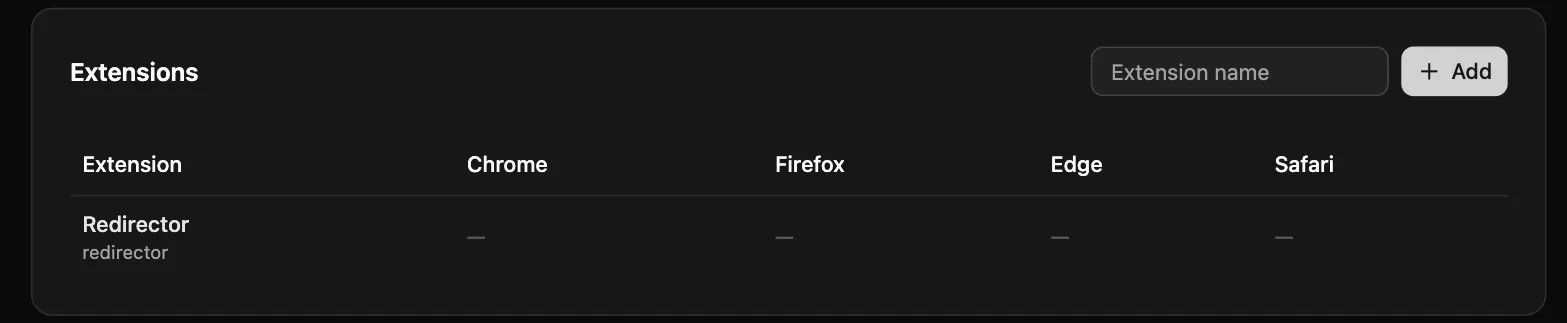
The name is just a label — the real identity is the ext_… id shown beneath it, which the SDK, CLI, and CI all
reference and which never changes. Pick whatever name makes sense to you and your users.
3. Wire up your project
Section titled “3. Wire up your project”Two paths, depending on where you’re starting from:
Starting a new extension? Let the scaffold do all of it:
npx extport loginnpx extport initextport init creates a WXT project pre-wired with @extport/wxt,
bound to a real extension record from birth — including the GitHub Actions workflow that pushes to every store when
you bump the version. It can also create the extension record for you, so steps 2 and 3 collapse into one.
Have an existing extension? Add the id to your project so the CLI, SDK, and CI all resolve it without hardcoding:
// wxt.config.ts (WXT projects — recommended)export default defineConfig({ modules: ['@extport/wxt'], extport: { extension: 'ext_…' }, // the id shown under your extension's name in the dashboard})Not on WXT? Create extport.config.json next to your package.json instead:
{ "extension": "ext_…" }What’s next
Section titled “What’s next”Each module is independent — adopt any of them, in any order:
- Publishing — add store credentials, connect store targets, and push your first build to every store from one command.
- Licensing — sell lifetime activation codes through your own Stripe Payment Link; extport fulfills and verifies them.
- Analytics — one anonymous ping per install per day, rolled up into weekly actives, installs, and version adoption across all four stores.